
How to Auto-Generate WordPress Pages & Landing Pages
Learn how to use the AI Page Generator to create complete WordPress pages and landing pages from a simple brief, manage block conversion, and optimize layouts.
Page Generator
The Page Generator is a versatile Gutenberg sidebar tool for creating entire WordPress pages and conversion-focused landing pages from a plain-language brief.
Don't have the plugin yet?
The Page Generator is a core feature of the WpTheMoon AI Generator plugin. Visit our homepage to download and install the plugin to start building pages faster.
It allows you to skip the manual design process by generating structured layouts, copy, and sections based on your specific goals.
Generate a page
-
Open or create a WordPress page.
-
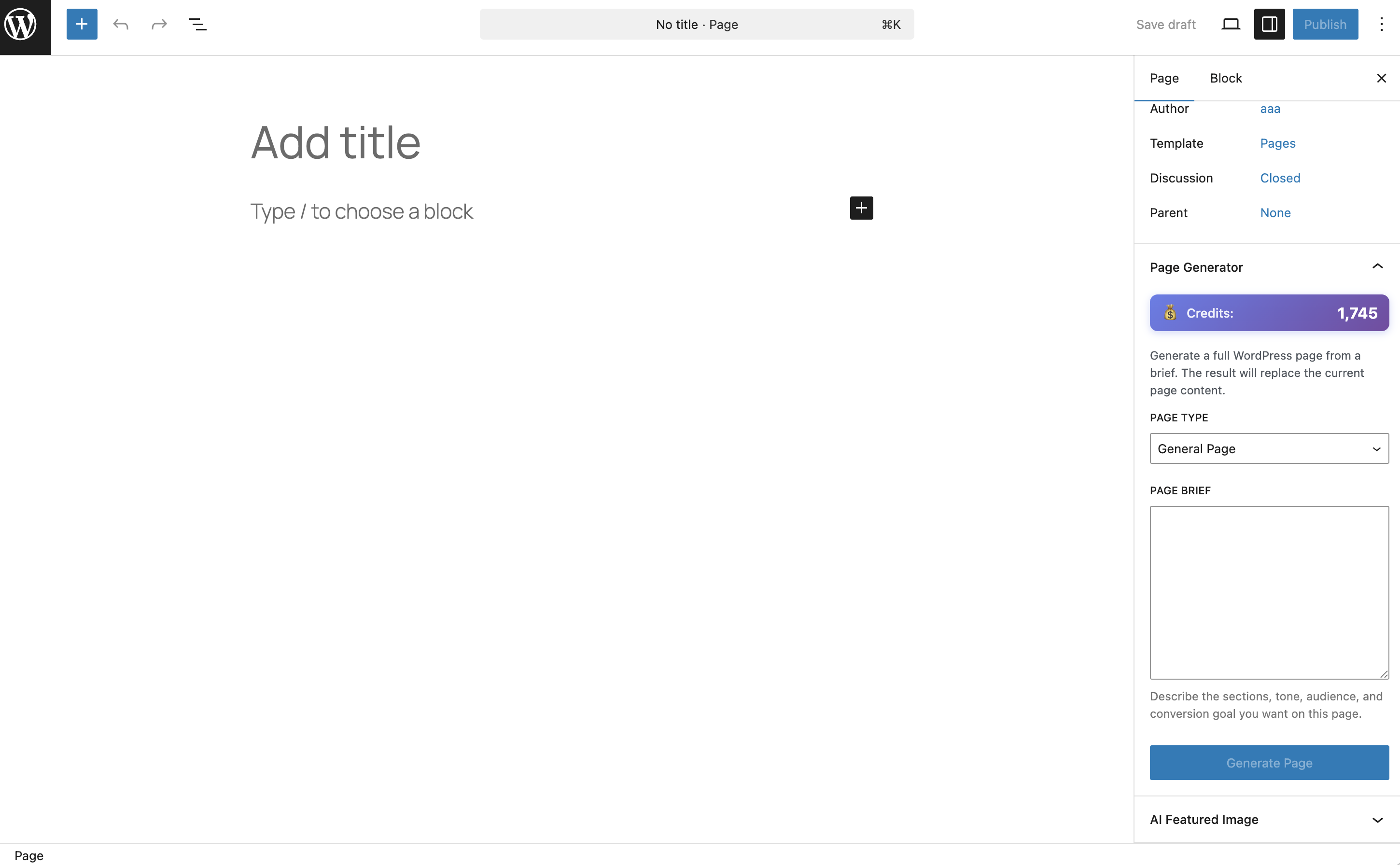
Open the right sidebar and locate the Page Generator panel.
-
Choose between General Page (informational) or Landing Page (conversion-focused).
-
Write a Page Brief (describe what the page is about, its target audience, and key sections).
-
Click Generate Page.
-
Review the result. The AI will generate content and automatically convert it into native blocks or HTML sections.

Page Types
- General Page: Best for About Us pages, Service descriptions, Resource lists, and informational company pages. Focuses on clarity and structure.
- Landing Page: Optimized for campaign offers, lead generation, and direct response. Focuses on high-impact headlines, benefits, and strong Calls to Action (CTA).
Important: Content Replacement
The Page Generator is designed to replace current content. If your page already contains blocks, the plugin will display a confirmation warning before overwriting them.
Tip: Always create a new page or back up your existing content before running the Page Generator on an existing URL.
Troubleshooting
If you encounter issues during page generation:
- HTML Block Fallback: Some complex layouts cannot be perfectly mapped to native Gutenberg blocks. These will appear as HTML Blocks. You can edit the code directly or use them as a reference to recreate the section with your theme's native blocks.
- Generation Timeout: Large pages with many sections might time out depending on your server settings. Try a more concise brief if this happens.
- Accidental Overwrite: If you accidentally replaced content, use the WordPress Revision system to restore an earlier version of your page.
For more detailed solutions, visit our Common Issues & Troubleshooting page.
Tips for a Great Page Brief
The quality of the generated page depends directly on your brief. Follow these best practices:
- Define the Audience: "Create a landing page for busy freelance graphic designers looking for tax software."
- List Key Sections: "Include a hero section, a pricing table, three core features with icons, and a FAQ at the bottom."
- Set the Tone: "Keep the tone professional yet approachable and energetic."
- Be Specific About the Offer: "The main goal is to get users to sign up for a 14-day free trial."
FAQ
Does page generation replace existing content?
Yes. To prevent data loss, the plugin will ask for confirmation before it replaces the current blocks on the page.
Can I edit the generated page?
Absolutely. Native blocks (paragraphs, headings, lists) are fully editable. HTML blocks can be edited in code view or replaced with your preferred block library components.
How do I get native blocks instead of HTML?
Keep your brief focused on standard content sections. The AI attempts to use native blocks whenever the layout allows for a clear mapping.